My current Windows 11 Machine has the following Specs
CPU: Ryzen 7 7700x
Motherboard: PRO X870E-P WIFI
Ram: 32gb DDR5 6000
GPU: RTX 4080 Super
The key to this change is having PCIE space for the NIC. In my case the second PCIEx16 slot on my motherboard has x4 PCIE lanes to it that are separate from the NVME drives. Where the bottom x16 slot shares its PCIE lanes with the NVME and only has 1x Lane so it would not work in my case.
For windows 11 the standard install method does not work for the x540-T2 adapter as it has not been supported on windows 11 at all (last support was Windows 10 early 2021 22h2).
Download the drivers
First download 29.4 Ethernet Adapter Complete Driver Pack from Intel’s website
Intel Direct Download Link
Archive Link
Next once downloaded extract the file using 7.zip or WinRAR or any other file extraction tool.
Once extracted you should have a folder within the extract called “PROXGB”
This is the folder with the X540-T drivers you will use this folder when installing.
Installing the drives
To install we will need to go directly to the device in device manager.
- Open Device Manager
- Navigate to the other devices or network adapters that has a network device with a warning yellow triangle
- Right click the device and select update or install driver
- Then select “Browse my computer for drivers”
- Select the browse button and select the PROXGB folder that was extracted earlier
- Make sure the Include subfolders is selected.
- Select next and then install.
- The driver should now be installed, restart the computer and the NIC should work now.
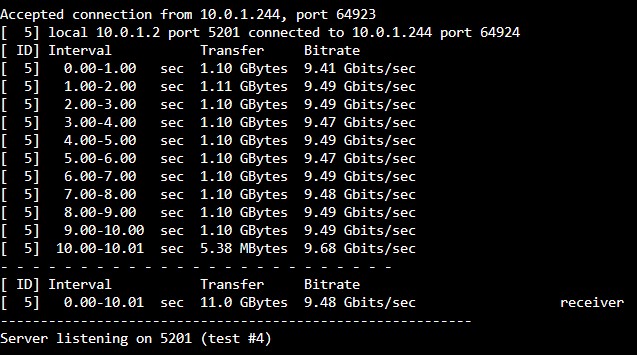
Iperf3 Results With Local Server